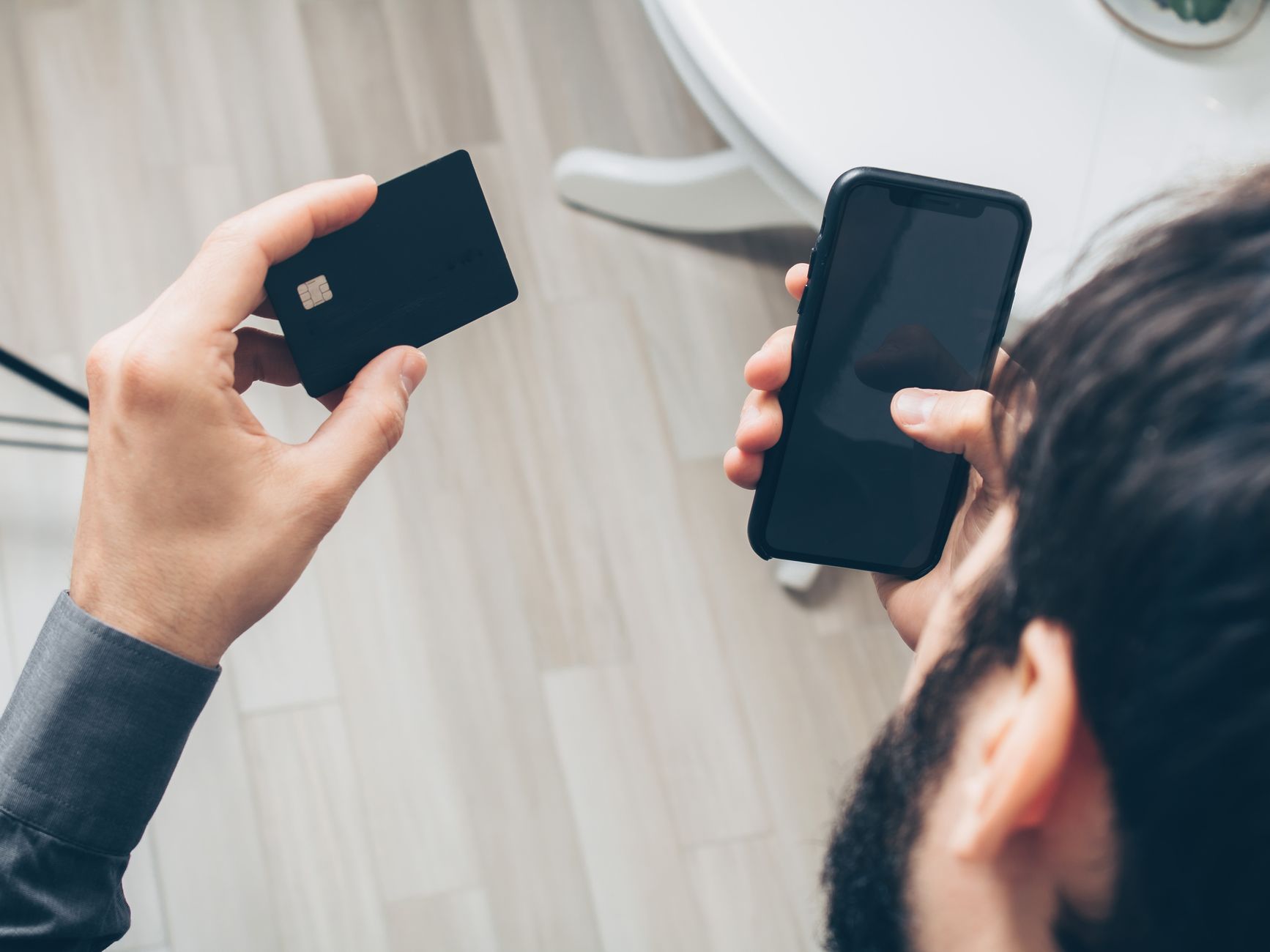
Chase two-factor authentication does not include third-party authenticator apps, based on the Chase security pages we reviewed in November 2026. What Chase does offer is a one-time code at sign-in, an optional email code, a trusted phone, an extra unlock step in its mobile app, and passkeys on chase.com, which are the strongest of the lot.
That leaves Chase customers who want a Google Authenticator or 1Password code with no place to put one. Below is what each option Chase describes actually protects against, and the order we would set them up in.
Chase two-factor authentication options at a glance
| Method | Offered by Chase? | Where Chase says so |
|---|---|---|
| One-time code at sign-in | Yes | 2-step verification on chase.com |
| Code by email | Yes, optional | 2-step verification settings |
| Notification in the Chase app | Yes, as a check on unusual sign-ins | Security Center |
| Trusted device | Yes | Phone verified in the Chase Mobile app |
| Passkey | Yes, on chase.com in a browser | Security Center and sign-in tools |
| Authenticator app (TOTP) | Not mentioned | Absent from the pages we read |
| Hardware security key | Not mentioned | Absent from the pages we read |
The one-time code: Chase’s 2-step verification
The basic layer is a code you type after your password. Chase’s help text puts it plainly: “Sign up for 2-step verification and get extra security when you sign in to chase.com.” Once it is on, you can set it to ask every time you use a browser rather than only when something looks unusual, and you can add email as a second delivery route.
The path Chase gives is: sign in to chase.com, open the Security & Privacy tab, find Enhance your Security under My Account, and enable 2-step verification. Chase adds that, depending on your account type, you may have to go through Security and then Manage security & privacy instead.
Codes sent to a phone number carry a known weakness. If a criminal talks your carrier into moving your number to their SIM card, the codes follow the number. CISA’s guidance for high-risk people is blunt: “Do not use SMS as a second factor for authentication.” Our explainer on why text-message codes are the weakest option covers the SIM-swap route in detail. A code is still far better than a password on its own, so turn it on, but do not stop there.
Trusted device and the app’s extra step
Chase lets you register a smartphone as a trusted device through the Chase Mobile app, and says this “adds an extra layer of protection against unauthorized access, even if someone has some of your information.” Separately, you can make the app ask for the phone’s own passcode or screen-lock code as a second step after you sign in.
Behind the scenes, Chase also runs its own checks. When it sees a first sign-in or odd activity, it says it uses “additional validation checks like mobile app notifications or a one-time code to authenticate you.” Those are triggered by Chase, not chosen by you, so treat them as a backstop rather than a setting.
Passkeys: the strongest option Chase offers
Chase describes its website as “passkey and password manager enabled.” A passkey replaces the password with a cryptographic key stored on your phone, computer or password manager, unlocked with your face, fingerprint or device passcode. Because the key only answers the genuine chase.com, a look-alike phishing page has nothing to collect. The FIDO Alliance, which writes the standard, calls passkeys “phishing resistant and secure by design.”
Two limits matter. Chase presents passkeys as a browser feature for chase.com; inside the mobile app, the extra unlock step and biometrics do the equivalent job. And creating a passkey does not delete your password, so a long, unique password still matters as the fallback. For why a bank can still ask for a code after a passkey sign-in, see our passkey security explainer.
What is missing, and what to do about it
No page we reviewed mentions time-based codes from an authenticator app (the 30-second codes covered in our TOTP authenticator guide) or USB/NFC security keys. Absence on a help page is not the same as a refusal, and features change, so check Security & Privacy in your own account. Until Chase lists either option, this order gives the most protection with what is available:
- Create a passkey for chase.com on a phone or computer only you can unlock.
- Turn on 2-step verification for every browser sign-in.
- Register your phone as a trusted device and switch on the app’s extra unlock step.
- Lock down your phone number. CISA notes that “Most telecommunications providers offer the ability to set an additional PIN or passcode for your mobile phone account.” Add one, and turn on any SIM or port-out lock your carrier offers.
Scam warnings in Chase’s own words
Every option above can be defeated by handing the result to a fraudster. Chase tells customers: “Never share your Chase username or password, Social Security number, account numbers or bank statements with anyone, including AI tools.” If a call or text pushes you to act, its advice is to stop: “Stop communicating with the suspected scammer immediately. If it was a phone call, hang up.” Then call the number printed on your card. Chase also says it may freeze an account when activity looks wrong — “we may place a temporary hold on it” — so an unexpected hold is worth checking through the app, not through a link in a message.
To see how Chase compares with other banks, brokers and apps, use our list of which banks support authenticator apps.
Frequently Asked Questions
Does Chase work with Google Authenticator?
Not according to the Chase security pages we reviewed in November 2026. They describe one-time codes, email codes, mobile app notifications, a trusted device and passkeys, and say nothing about third-party authenticator apps such as Google Authenticator or Microsoft Authenticator.
Can I use a hardware security key with Chase?
The Chase pages we read do not mention USB or NFC security keys. The closest phishing-resistant option they describe is a passkey on chase.com, which uses the same FIDO technology that security keys use.
How do I turn on 2-step verification at Chase?
Chase says to sign in to chase.com, open the Security & Privacy tab, find Enhance your Security under My Account, and enable 2-step verification. You can then choose to be asked every time you sign in on a browser and opt to receive codes by email as well.
Is a Chase passkey safer than a one-time code?
Generally yes. A one-time code can be read out to a scammer or typed into a fake site, while a passkey only works on the real site it was created for. CISA calls phishing-resistant sign-in the most secure form of multi-factor authentication.
Sources
- What you can do to help protect your finances — JPMorgan Chase, accessed November 20, 2026
- Security Center: how we protect you — JPMorgan Chase, accessed November 20, 2026
- Mobile Communications Best Practice Guidance — Cybersecurity and Infrastructure Security Agency (CISA), December 2024
- Implementing Phishing-Resistant MFA — Cybersecurity and Infrastructure Security Agency (CISA), October 2022
- Passkeys — FIDO Alliance, accessed November 20, 2026
This article is general consumer-security information, not legal or financial advice. Sign-in options, menus and fees change; confirm each setting on the official website or app of your bank, broker or wireless carrier before relying on it. Data Breach Radar is not affiliated with any bank, broker, carrier or app named here, and no company paid to be mentioned.